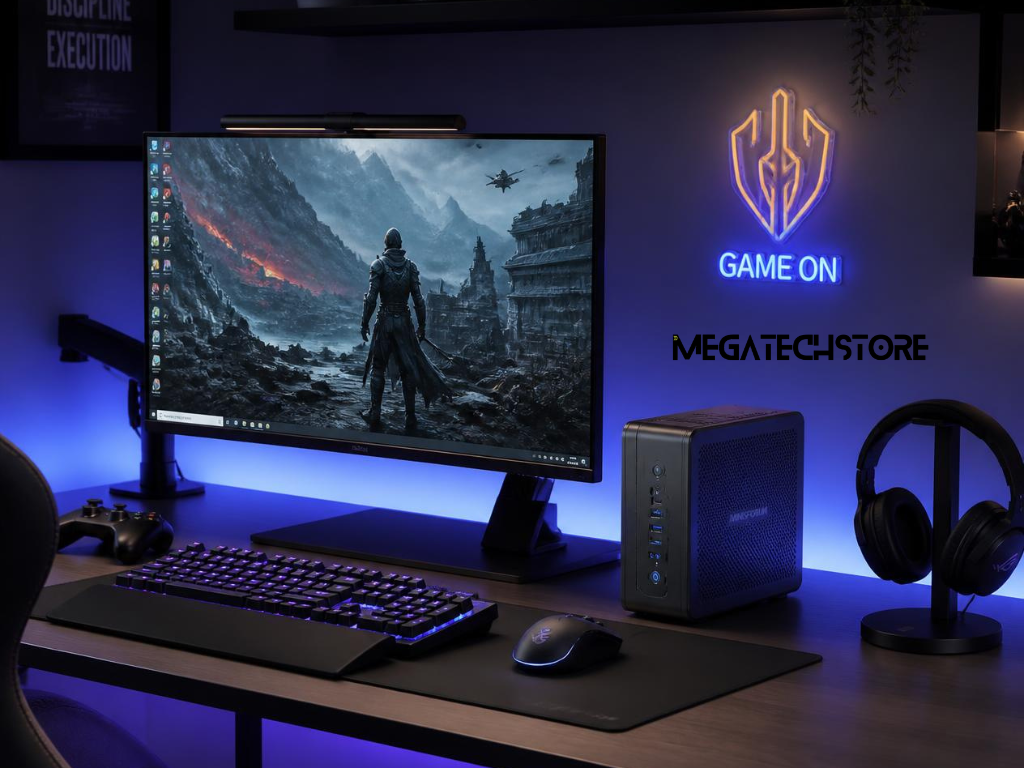
The Minisforum MS-01 is a tiny computer that’s strong enough to run Proxmox, which lets you create and manage virtual machines (like having multiple computers inside one).
It might sound tricky, but I’ll walk you through it step-by-step in a simple way.
What You’ll Need:
- Your Minisforum MS-01: Any version works (it might say i5 or i9 on the box—that’s fine).
- A USB Stick: One with at least 8GB of space (like a thumb drive you’d use for photos).
- Proxmox File: You’ll download this from the Proxmox website—it’s what makes the magic happen.
- A Computer: To put the Proxmox file onto the USB stick.
- A Screen and Keyboard: To set things up at first (you can unplug them later).
Easy Steps to Get Started:
- Make the USB Ready:
- Go to the Proxmox website (proxmox.com) and download the latest “Proxmox VE” file (it’ll look like proxmox-ve_something.iso).
- Plug your USB stick into another computer. Use a free program like “Rufus” (search for it online—it’s easy to find) to copy the Proxmox file onto the USB.
- Pick your USB from the list in Rufus, choose the Proxmox file, and hit “Start.” Wait until it’s done.
- Get Into the MS-01’s Settings
- Plug the USB into your MS-01.
- Turn on the MS-01 and quickly press the Delete key (or Fn + Backspace if your keyboard has tiny keys) over and over until a blue screen pops up. This is the “BIOS”—think of it as the computer’s control room.
- Use the arrow keys to find “Boot” or “Boot Order.” Make the USB the first thing it tries to start from (move it to the top of the list).
- Press F10 to save and exit.
- Install Proxmox
- The MS-01 will restart and show a menu. Pick “Install Proxmox VE.”
- Follow what the screen says: Choose where to put Proxmox (usually a fast storage drive inside the MS-01—pick the one you want to use).
- Make up a password you’ll remember (write it down!).
- Pick how it connects to the internet (it’ll ask for an “IP address”—if you’re not sure, ask someone who set up your Wi-Fi or use “192.168.1.100” as a guess).
- It’ll take a few minutes to install. When it’s done, take out the USB and restart the MS-01.
- Check If It Works
- After it restarts, use another computer or phone. Open a web browser (like Chrome) and type https://192.168.1.100:8006 (or whatever IP you chose).
- You should see a login page: Log in with “root” as the username and the password you made.
Things to Watch Out For:
- Updates for Safety: The MS-01 might need a quick update to work smoothly. Think of it like updating your phone. You can get this from Minisforum’s website (look for “BIOS update” for your model) or ask their support for help.
- Heat: If the MS-01 gets really warm (like too hot to touch), make sure it’s in a spot with air around it. It’s working hard!
- Internet: The MS-01 has fast internet ports. They should work fine, but if you can’t connect, double-check the IP address you picked.
What Could Go Wrong?
- It Won’t Turn Off Right: Sometimes it stays half-on after you shut it down. This might fix itself with that BIOS update I mentioned.
- Screen Goes Blank: If it stops showing stuff, restart it and try again. It’s usually a one-time hiccup.
You Did It!
Once Proxmox is running, you can use it to make virtual computers—like a Windows PC or a game server—right on your MS-01. It’s like having a bunch of computers in one tiny box! If anything confuses you or doesn’t work, just ask me, and I’ll help you figure it out.
Ready to get your hands on the Minisforum MS-01? Visit MegaTech Store Australia and order yours today! Click here to buy now.