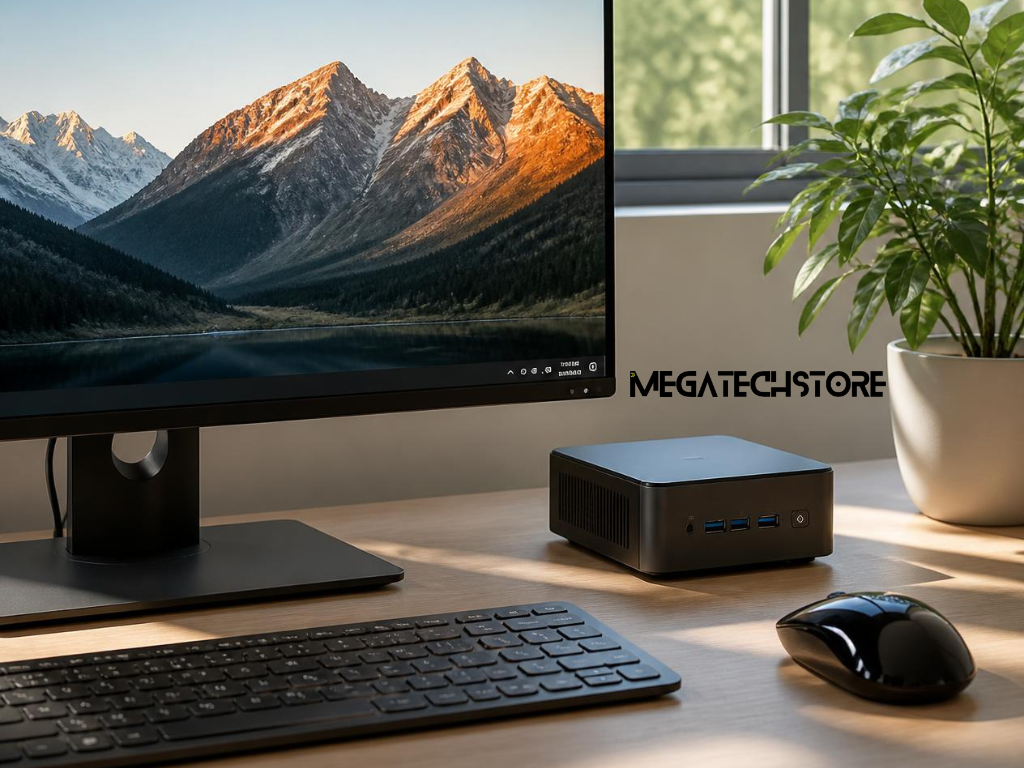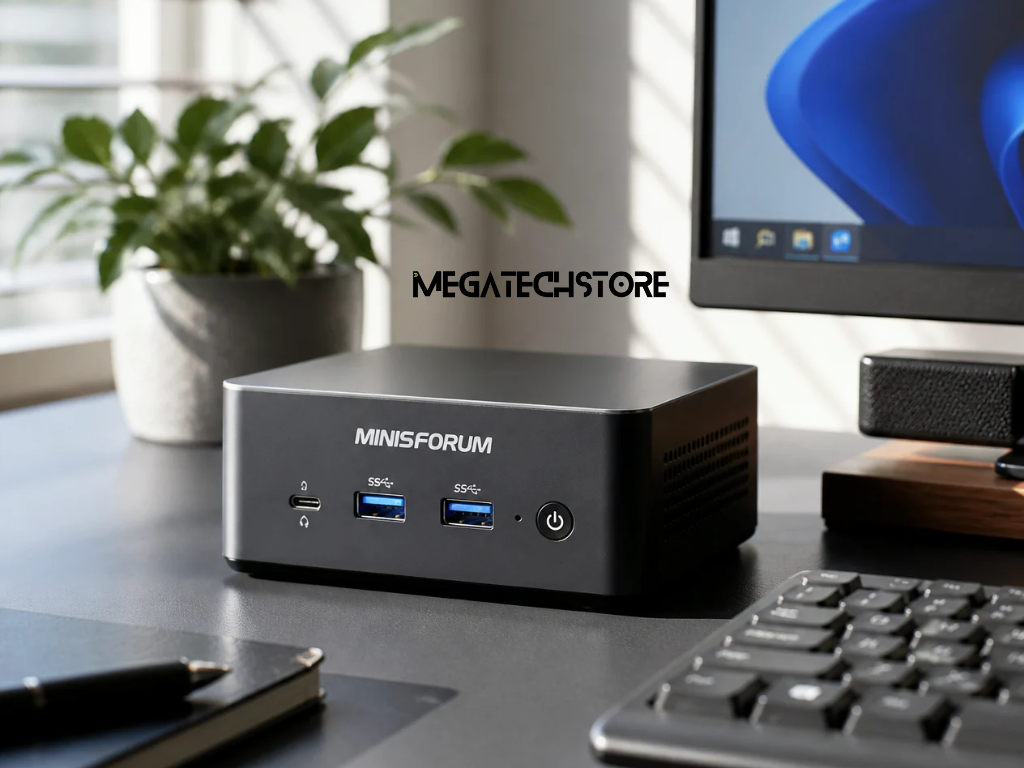

A compact computer can be a practical choice when you want useful desktop performance without placing a large tower on or under your desk. However, the growing number of models, processors and configurations can make it difficult to know which system is suitable.
People searching for minisforum australia are often comparing computers for office work, study, home entertainment, software development, content creation or gaming. Although many Minisforum systems have a similar compact appearance, their performance, cooling, graphics, storage and upgrade options can be very different.
The best choice is therefore not simply the newest or most expensive model. It is the computer that supports your applications, monitors, accessories and future storage needs while providing a clear warranty and support process.
This guide explains the main points to review before ordering so that you can compare products on their complete value rather than relying on one impressive specification.
A mini PC places the main computer components inside a much smaller enclosure than a standard desktop tower. It normally uses compact memory, storage and cooling components to reduce the amount of desk space required.
This makes a minisforum pc useful in home offices, apartments, reception areas, classrooms, meeting rooms and retail environments. Some models can sit beside a monitor, fit on a shelf or attach behind a compatible display using a mounting bracket.
The smaller enclosure also creates limitations. A traditional desktop may provide more room for a large graphics card, several storage drives, additional expansion cards and a stronger cooling system. A mini PC usually offers fewer internal upgrade options because the processor and graphics hardware are often integrated into the motherboard.
Modern compact computers can still deliver strong performance. Current mini PC models are being designed for office productivity, creative work, gaming and AI-related applications, but the capability depends on the exact processor, graphics hardware, memory configuration and cooling design.
For this reason, buyers should compare the individual model rather than assuming that every Minisforum computer will perform in the same way.
A compact computer can suit someone who mainly uses email, Microsoft Office, cloud platforms, online meetings, streaming services and browser-based software. These tasks normally require balanced performance rather than the highest available processor.
Students may use a mini PC for research, online classes, assignments, programming and light creative work. A permanent desk setup can also be more comfortable than a laptop when the user prefers a larger monitor, full-sized keyboard and separate mouse.
In a business setting, compact computers may be used at reception desks, customer service counters, meeting rooms, shared workstations and digital signage displays. Their small footprint can help create a cleaner workspace, but businesses should still consider security, remote management, warranty support and replacement availability.
More powerful models may support photo editing, video production, virtual machines, software development and gaming. However, these applications place greater pressure on the processor, graphics and cooling system.
Before comparing computers, write down the programs you intend to use, the number of monitors you need and any specialised equipment that must be connected. This creates a clearer starting point for the rest of the decision.
For ordinary office work, web browsing, email, document editing and video meetings, a current entry-level or mid-range processor may provide enough performance. In many cases, having sufficient memory and a responsive solid-state drive will improve the everyday experience more than paying for the highest processor tier.
A computer with 16GB of RAM can be a practical starting point for many general users. It normally provides enough room for common applications, several browser tabs and video meeting software. Someone who regularly works with large spreadsheets or keeps many programs open may benefit from 32GB.
Storage capacity should reflect how files are managed. A 512GB SSD may suit someone who mainly stores documents and photographs in cloud services. A user who installs large applications, games or video files may need 1TB or more.
You should also consider the complete workstation. The computer may need to support a webcam, headset, printer, keyboard, mouse, external drive and multiple monitors. Checking the ports before purchase can reduce the need for extra hubs and adapters.
A mini PC purchased for work should also have a stable network connection. Wired Ethernet can be useful for fixed workstations, while suitable Wi-Fi support may be more convenient where network cabling is unavailable.
Creative programs, development tools and games require more careful specification planning. Video editing, image processing, code compilation and virtual machines can place sustained pressure on the system rather than creating only short periods of activity.
A content creator may need a faster processor, 32GB or more of memory, additional SSD capacity and suitable monitor outputs. The required graphics performance will depend on the software, project size, video resolution and use of hardware acceleration.
Developers should consider the number of local services, containers or virtual machines they expect to run. These workloads can consume memory quickly, so a system that supports future RAM expansion may be valuable.
Gaming requires particular attention to graphics. Many compact computers use integrated graphics, which share system memory with the processor. They may handle esports games, older titles and less demanding games, but performance can vary according to the processor, memory setup, resolution and quality settings.
Memory configuration can have a major effect on integrated graphics. Independent mini PC testing has shown that single-channel memory may reduce performance when compared with a suitable dual-channel setup.
Some higher-performance Minisforum models include dedicated graphics and offer substantially greater gaming capability than a typical office mini PC. However, these systems may also be larger, more expensive and louder under load.
Buyers should therefore review independent testing for the exact model and the specific applications or games they plan to use.

The processor affects how quickly the system opens demanding applications, completes calculations and handles several tasks at once. However, processor names can be difficult to compare because the product family alone does not reveal the full performance level.
A listing may refer to Ryzen 7, Ryzen 9, Core i7 or Core Ultra without making the processor generation immediately clear. Buyers should check the complete model number, core count, power class and integrated graphics.
Lower-power processors can be suitable for browsing, media playback and standard office tasks. Higher-performance processors may be better for content creation, development and demanding multitasking, but they can produce more heat.
Cooling is therefore closely connected to processor performance. A compact computer may perform well during a short test but reduce its speed during a longer workload if the cooling system cannot control the temperature.
Independent reviews that include sustained performance, fan noise and thermal testing are usually more useful than a simple comparison of maximum boost speeds.
The processor should be selected according to the workload rather than prestige. Paying for additional cores may provide little practical improvement when the computer is mainly used for email, documents and web applications.
Memory affects how comfortably the computer can manage applications, browser tabs and open files. A fast processor can still feel restricted when the system does not have enough RAM.
Before purchasing, check whether the memory is replaceable, how many slots are available and the maximum supported capacity. Some models use removable SODIMM modules, while others may use fixed memory.
For general use, 16GB may be sufficient. Creative users, developers and people running virtual machines may benefit from 32GB or more. The right amount depends on the software and the expected lifespan of the computer.
Buyers should also check whether the memory uses one module or two. A two-module arrangement may provide higher memory bandwidth, which can be particularly important when the computer relies on integrated graphics.
Graphics requirements should be matched to the intended applications. Integrated graphics may be appropriate for office software, video playback, light editing and selected games. Dedicated graphics may be needed for demanding games, complex 3D work and heavier creative applications.
Do not judge graphics capability from the amount of system memory alone. The graphics architecture, memory configuration, cooling and software drivers all influence real performance.
Most current mini PCs use an M.2 solid-state drive for the operating system and applications. These drives offer fast access while occupying very little internal space.
When comparing storage, consider both the installed capacity and the available expansion slots. A system may arrive with a 512GB or 1TB SSD but provide another slot for future storage. Other models may have only one slot, meaning the original drive must be replaced when more capacity is required.
The physical length and interface of the supported SSD should also be confirmed. Not every M.2 drive is interchangeable, even when the connectors appear similar.
Someone who works with large photographs, videos, game libraries or virtual machines should consider future storage requirements before ordering. Selecting enough capacity at the beginning can reduce the need to transfer the operating system to a larger drive later.
Important files should also be backed up outside the computer. A second drive inside the same enclosure does not protect against theft, electrical damage or a complete hardware failure. External storage, network storage or a suitable cloud backup service may still be required.
When purchasing extra mini pc parts, check the official specifications for the exact model rather than relying on general compatibility assumptions.
Port selection can affect how easy the computer is to use. A compact system may provide several connections, but the position, speed and capabilities of those ports can vary.
Check the number of USB-A and USB-C ports and compare them with your keyboard, mouse, external drives, webcam, printer and other accessories. Remember that one port may be occupied permanently by a wireless receiver or storage device.
Monitor compatibility requires additional attention. Confirm whether the computer provides HDMI, DisplayPort or USB-C video output and whether those connections support the required resolution and refresh rate.
A USB-C connector does not automatically support video, charging and high-speed data. Two ports that look identical may offer different functions, so the detailed specification should be reviewed.
For multiple monitors, check the maximum number of simultaneous displays rather than counting the available video connectors. The system may have several outputs but still impose limits on resolution, refresh rate or the number of active screens.
Networking should also match the environment. Wired Ethernet may be useful for stable business connections, file transfers and home servers. Wi-Fi and Bluetooth versions should be reviewed when the computer will use wireless accessories or operate away from a network cable.
Compact computers place the processor, memory, storage and cooling system inside a limited area. Good thermal design is therefore important for performance, noise and component reliability.
A mini PC may remain quiet during simple web browsing but increase its fan speed during video editing, gaming or software compilation. Fan noise can be especially noticeable when the computer is placed directly beside the monitor.
Reviews should be checked for noise levels and temperature behaviour under sustained workloads. A model that performs well for a few minutes may slow down during a longer task if heat builds up inside the enclosure.
Placement also matters. The computer should have enough space around its air vents and should not be pushed against a wall, covered by papers or installed inside a closed cabinet without ventilation.
Users in warmer Australian locations may need to pay particular attention to airflow, especially when the computer will run demanding applications for long periods. Any claim about safe temperature limits or operating conditions should be checked against the manufacturer’s current documentation.
The smallest model is not always the best model. A slightly larger enclosure may provide better airflow, quieter operation or stronger sustained performance.
Mini PCs often provide more upgrade potential than many laptops, but less internal flexibility than a traditional desktop. Memory and storage may be replaceable, while the processor and graphics hardware are often fixed.
Check how many memory slots and SSD slots the model provides. A system with two memory slots may already have both occupied, which means a future upgrade could require replacing the existing modules.
Storage expansion should also be reviewed carefully. A second M.2 slot may operate at a different speed or support a different drive length. Some models may also provide space for another type of internal drive.
The Wi-Fi module may be replaceable in selected computers, but this should not be assumed. Opening the enclosure may also involve small cables or connectors that require careful handling.
Buyers should review the manufacturer’s upgrade instructions and warranty conditions before installing components. Confirm whether user upgrades are permitted and whether accidental damage during installation is covered.
When long-term internal expansion is a priority, a conventional desktop may remain the better option. A mini PC is generally chosen for compact size and integrated design rather than unlimited component replacement.
When comparing a Minisforum system with another mega computer or pre build pc, focus on the complete configuration rather than the processor alone.
Confirm how much RAM and storage are installed, whether Windows is included and which accessories come in the box. Some listings may show the same product with several selectable configurations, so the main image and starting price may not represent the version you intend to purchase.
The final cost may include the computer, operating system, additional storage, display adapters, keyboard, mouse, delivery and setup assistance. A lower advertised price may not be better value when several essential items must be purchased separately.
Australian buyers should check whether the price is displayed in Australian dollars and includes GST. They should also confirm whether the product is dispatched from Australian stock or supplied from overseas.
The warranty process is equally important. Check who handles faults, where the computer must be returned and whether the installed memory and storage are covered by the same support arrangement.
A trustworthy tech store should provide clear product descriptions, current contact information, written warranty conditions and an explanation of what is included.
Contacting Mega Tech Store may be useful when you are unsure which Minisforum model or configuration will support your applications.
Before making contact, prepare the names of the programs you use, your preferred budget, your monitor requirements and the amount of storage you expect to need. Mention whether the computer will be used for office work, study, creative production, development, gaming or business systems.
You should also explain any future plans, such as adding more memory, installing another SSD or connecting several displays. This helps the supplier assess both immediate needs and possible upgrade requirements.
Customers in Sydney or Western Sydney may wish to ask about current stock, delivery, collection, setup support and warranty arrangements. Availability and service details can change, so they should be confirmed directly.
Contact the company before ordering when you are uncertain about monitor compatibility, memory configuration, operating system inclusion, upgrade support or the difference between similar processor models.
The purpose of supplier support should be to help you select a suitable system, not simply direct you towards the most expensive configuration.
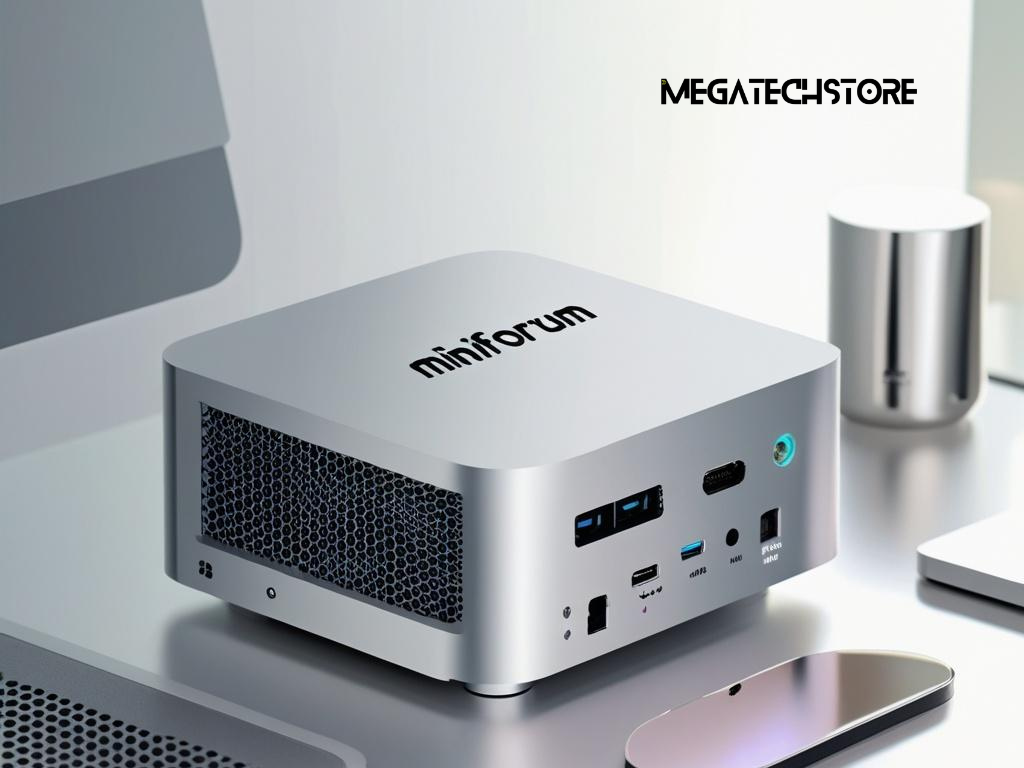
Before placing an order, confirm the complete model name and processor number. Similar Minisforum product names may appear with different processors, memory capacities or storage options.
Check the installed RAM, memory layout, SSD capacity and operating system. Confirm whether the computer is ready to use or requires additional components and software.
Review the video outputs against your monitors and confirm the supported resolution, refresh rate and number of simultaneous displays. Check whether the necessary cables or adapters are included.
You should also confirm the Australian power adapter, wireless specifications, Ethernet speed and available USB connections.
Read the warranty and return terms before paying. Check where warranty service is completed, who pays for return shipping and whether installing your own components affects coverage.
Saving a copy of the product description, order confirmation and warranty conditions can be useful if the online listing changes later.
The right Minisforum computer should support your actual workload without adding features that provide little practical value.
An office user may benefit most from suitable memory, reliable networking and enough monitor connections. A content creator may need additional RAM, faster storage and stronger sustained processor performance. A gamer should pay closer attention to graphics, cooling and memory configuration.
Consider the complete system rather than one specification. Processor speed, RAM, storage, ports, cooling, upgrade options, warranty support and total cost all affect the value of the purchase.
Once these areas are clear, you can compare Minisforum Australia options with other compact and full-sized computers more confidently.
For product-specific assistance, speak with Mega Tech Store and provide details about your applications, monitors and expected workload. This can help you identify a suitable configuration before committing to the purchase.