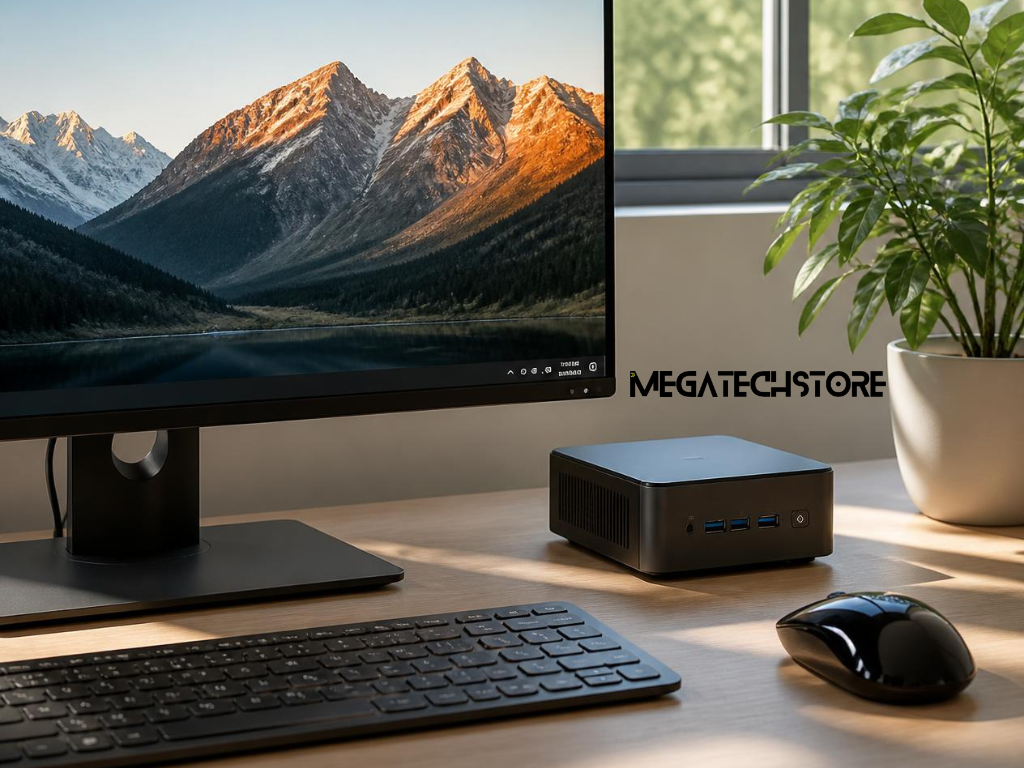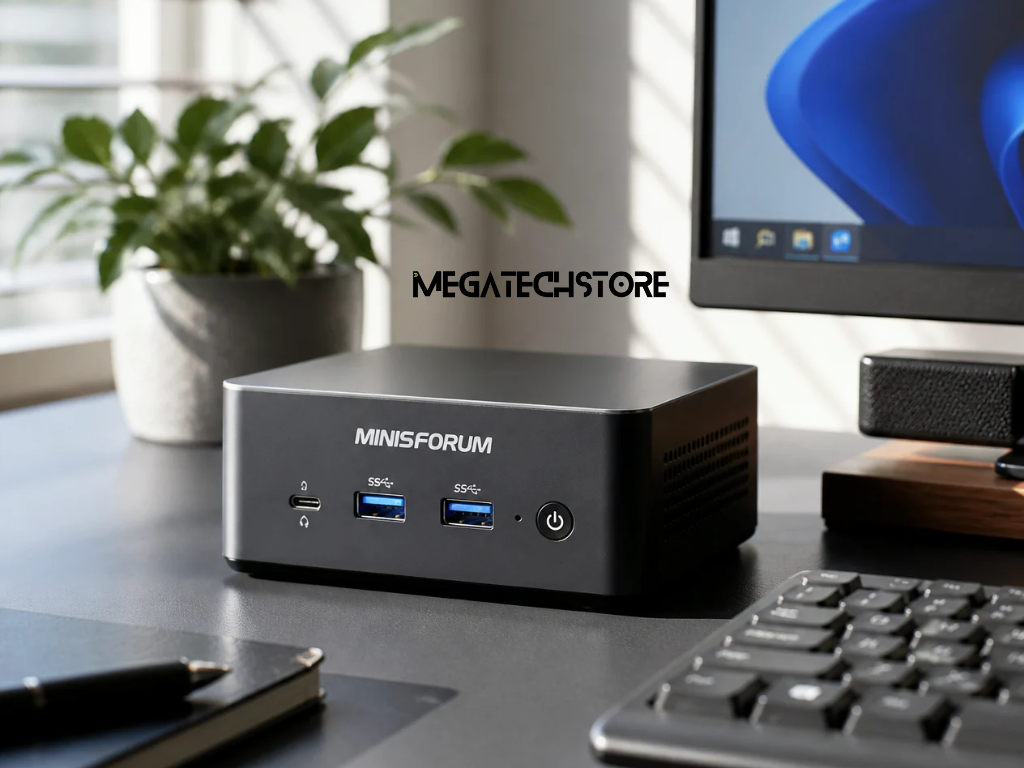

A compact computer can be appealing when you want a clean desk, useful performance and less equipment taking up space. However, a conventional desktop may offer stronger graphics, easier upgrades and more flexibility over its working life.
The best choice depends on what you plan to do, how much space you have and whether future upgrades matter. A minisforum pc may suit everyday office work, media use, coding and selected creative tasks, while a larger desktop can be more practical for demanding gaming, rendering or specialised professional applications.
This comparison explains how the two options differ in size, performance, cooling, energy use, upgradeability, connectivity and long-term value.
A mini pc can handle many everyday activities when it has a suitable processor, enough memory and appropriate storage. These activities may include web browsing, email, office applications, video calls, online learning and media playback.
Compact systems can also suit reception counters, home offices and shared workspaces where desk space is limited. Some businesses use them for digital displays, point-of-sale functions or focused administrative tasks, although the software and peripheral requirements should be checked first.
The model name alone does not tell you whether a system will suit your work. Compare the processor, memory, storage, operating system and ports with the requirements of the applications you use.
If you usually keep many browser tabs and applications open, additional memory may improve day-to-day responsiveness. Storage capacity also matters when you keep large numbers of files locally rather than in approved cloud services or network storage.
A conventional desktop can complete the same everyday tasks, but it generally occupies more space. Its advantage becomes clearer when you expect to add expansion cards, several drives or more powerful components later.
Gaming, video editing, three-dimensional design, engineering applications and local AI workloads can place sustained demands on the processor, graphics hardware, memory and cooling system.
Some Minisforum systems use capable processors and integrated graphics that can support light or moderate gaming. Other models are positioned as gaming systems or compact workstations. Performance varies considerably, so buyers should review the exact configuration rather than assuming every minisforum product has similar capabilities.
A traditional desktop usually provides more room for a dedicated graphics card and a larger cooling system. This can make it more suitable for high-resolution gaming, complex rendering and other graphics-intensive work.
Software requirements should guide the decision. Check the recommended processor, graphics capability, memory and storage specified by the application developer. Minimum requirements may only support basic use and may not provide the experience you expect.
You should also consider how long each workload runs. A compact computer may perform well during short tasks but operate differently during lengthy exports, simulations or gaming sessions because sustained heat must be managed in a smaller enclosure.
Size is one of the clearest advantages of a minisforum pc. Its small enclosure can free up desk space and make it easier to create a simple workstation.
Some compact computers can be attached behind a compatible monitor using an appropriate mounting bracket. This arrangement can reduce visible clutter, but the mounting pattern, bracket, cables and ventilation space must be checked before installation.
The system should not be placed inside a closed cabinet or pressed against a wall if that blocks its air vents. Compact size does not remove the need for airflow. The computer needs enough room to draw in cooler air and release heat.
Cable placement also affects the final setup. A small computer connected to several displays, external drives, speakers and a network cable can still create a crowded workspace. Looking at the direction and position of the ports can help you decide where the unit should sit.
A desktop tower needs more space, but its larger case may organise internal components more neatly. Fewer external devices may be required when storage, graphics and expansion cards can be installed inside the case.
A mini PC can be easier to move between workspaces than a desktop tower. This may suit someone who works from several locations but already has compatible monitors and peripherals at each one.
However, a mini PC is not a direct replacement for a laptop. It normally needs external power, a display, a keyboard and a pointing device. Moving only the computer may be convenient, but transporting the complete setup is less practical.
The system may also be useful for temporary workstations, events or presentations when the destination already has suitable equipment. Before relying on this arrangement, confirm display connections and whether the required power adapter will be available.
A conventional desktop is less convenient to transport because of its size and weight. It is generally better suited to a permanent workspace.
If mobility is the main priority, compare the mini PC with a laptop as well as a desktop. A laptop includes a battery, display and input devices, while the mini PC may provide more connection options or selected component upgrades in a small stationary design.
Many compact computers use processors designed for laptops or other space-conscious systems. These chips can provide strong everyday performance while operating within lower power and heat limits than many desktop processors.
Processor comparisons can be confusing because a familiar product family name does not guarantee identical performance. Generation, core design, clock behaviour, cache, power settings and cooling all affect the result.
A desktop processor may offer higher sustained performance when paired with suitable cooling and power delivery. This can matter for long rendering jobs, software compilation, simulations and other processor-heavy workloads.
However, a more powerful desktop chip may provide little practical benefit for email, documents and ordinary web applications. Spending more on processing power that the user does not need may reduce the budget available for memory, storage or a better monitor.
When comparing systems, look for independent performance testing using applications similar to yours. Short synthetic tests can be informative, but sustained workload results may provide a better indication of how the computer performs over time.
Integrated graphics share system resources with the processor and memory. Modern integrated graphics can support high-resolution displays, media playback, creative applications and selected games, but their performance varies between processors.
Game requirements should be compared against the exact graphics hardware. Resolution and quality settings have a major effect on performance. A system that runs a game comfortably at 1080p with moderate settings may not provide the same results at 1440p or 4K.
A conventional desktop can usually accept a dedicated graphics card, provided the motherboard, case and power supply support it. This gives buyers a wider choice of gaming and professional graphics performance.
Some compact Minisforum models offer connections designed to support external graphics solutions. The current range includes selected systems with USB4 or OCuLink, but availability and capability vary by model. An external graphics setup also requires compatible hardware, suitable power and additional desk space.
External graphics can expand a compact computer’s capabilities, but they may reduce the size and price advantages that attracted the buyer initially. Compare the total setup with the cost and flexibility of a conventional desktop before deciding.
Electronic components produce heat, particularly during demanding work. A smaller enclosure has less internal space for large heat sinks, fans and open airflow.
Compact systems may use smaller fans that operate faster when the processor is under sustained load. This can make fan noise more noticeable in a quiet office, although the actual result varies between models and power settings.
A desktop case can support larger fans and cooling components. Larger fans may move sufficient air at lower speeds, and the additional internal space can make heat management easier.
Placement affects both systems. Dust, blocked vents and high room temperatures can reduce cooling effectiveness. The computer should be kept on a stable surface with suitable clearance around its air intakes and exhausts.
Noise expectations are personal. A system that sounds quiet in a busy workplace may be noticeable in a bedroom or recording space. If noise matters, look for testing that measures the exact model under idle and sustained workloads.
A compact computer may use less electricity than a powerful desktop during many common tasks because it often uses lower-power processors and integrated graphics. Actual consumption depends on the selected hardware, workload, display equipment and settings.
A gaming desktop with a dedicated graphics card will generally draw more power under load than a mini PC using integrated graphics. It may also deliver substantially stronger graphics performance, so the comparison should consider the work completed rather than power alone.
Idle consumption matters for computers that remain switched on for long periods. Power-management settings, sleep behaviour and connected devices can influence the total.
An oversized desktop power supply does not constantly consume its full advertised wattage. The rating shows its designed capacity, while actual draw changes with the workload and system efficiency.
Businesses buying several computers may want to consider performance, energy use, heat output and administration together. A lower-power system can be useful, but it still needs to meet the application requirements without slowing employees down.
Upgradeability varies across compact models. Some allow access to memory and one or more storage drives, while others use components that are fixed to the motherboard.
Before buying, confirm whether the system uses replaceable memory modules, how many storage slots are available and which drive sizes and interfaces are supported. Also check the maximum supported capacity stated for that model.
Barebone systems are commonly sold without some combination of memory, storage and an operating-system licence. This gives experienced buyers more control over the configuration, but it requires compatible mini PC parts and correct installation.
Opening the enclosure or installing components should be done according to the manufacturer’s instructions. Buyers should check how user-installed parts affect support and how faults involving separately purchased components will be handled.
The processor and integrated graphics are generally not practical upgrades in most small systems. If future processing or graphics requirements may increase significantly, a conventional desktop may offer a clearer path.
A desktop built around common form factors may allow the owner to replace or upgrade the graphics card, power supply, cooling system, storage, memory and other computer parts.
This flexibility can extend the useful life of the system. A gamer might upgrade the graphics card while keeping the case and storage, while a business may replace a failed power supply without replacing the complete computer.
Compatibility still needs to be checked. Desktop components differ in size, power requirements, socket type and interface. A standard case does not guarantee that every new component will fit.
Prebuilt desktops can also use proprietary cases, connectors or power supplies that limit upgrades. Buyers should confirm the internal design rather than assuming every full-sized pre build PC uses completely standard components.
Compact computers may be simpler to replace as a complete unit, while desktops can be easier to repair component by component. The more suitable approach depends on technical support, downtime requirements and expected ownership period.
Port selection varies significantly across Minisforum models. Buyers should list the devices they need to connect before comparing systems.
Monitor connections may include HDMI, DisplayPort or display support through USB-C or USB4. The number of supported displays and available resolution can depend on the exact processor, port and configuration.
USB ports should be checked by both type and capability. Two connectors that look similar may support different transfer speeds, display functions or charging features.
Wired networking can be important for offices, media servers and large file transfers. Some compact systems include faster Ethernet options or more than one network port, but this is model-dependent.
Also check Wi-Fi, Bluetooth, audio and memory-card requirements. Using several adapters can solve a port shortage, but it adds cost and creates more points of failure.
A dock can add display, network and USB connections through one compatible port. It may be convenient for a desk setup, but its capabilities depend on both the dock and the host computer.
External storage can provide additional capacity for backups, media or project files. It should not replace a proper backup plan, particularly when the drive remains beside the computer and is exposed to the same theft or physical damage.
External graphics can support more demanding workloads on compatible systems. OCuLink and USB4 solutions have different connection methods and performance characteristics, so buyers should confirm the requirements of the computer, dock, graphics card and power supply.
Adding a dock, external drive and graphics enclosure can turn a simple mini PC setup into several separate devices. This may still be worthwhile when flexibility matters, but the total cost, cable management and desk space should be compared with a desktop.
If expansion is likely, plan it before purchasing. The cheapest base system may not be the lowest-cost option once all required accessories are included.
A barebone mini PC may initially appear less expensive because it does not include every component required for use. Depending on the configuration, buyers may need to purchase memory, storage and an operating-system licence separately.
Check exactly what comes in the box. A product listing should identify the processor, memory, storage, operating system and power adapter. Similar model names can be sold in several configurations.
A ready-to-use system offers greater convenience because the main components and operating system are already installed. However, buyers should still check component capacity, upgrade access and licence details.
When comparing a mini PC with a pre build PC, include the entire setup cost. This may involve a display, keyboard, mouse, storage, dock, external graphics equipment and any required adapters.
Value should also consider expected lifespan, repairability and performance. A slightly more expensive configuration may be worthwhile if it avoids an immediate memory or storage upgrade.
Australian buyers should confirm whether stock is held locally or shipped internationally. Delivery time, currency, GST, power compatibility and return arrangements can affect the purchase.
The minisforum australia store publishes return and warranty information, but buyers should read the current terms applying to the exact seller and order before paying. Purchasing from an Australian retailer may provide different delivery and support arrangements from ordering directly.
Ask who handles technical faults, where returns must be sent and whether the complete system or only the affected component is covered. If you install your own memory and storage, clarify which seller supports each part.
A local tech store should be able to explain the supplied configuration, Australian power adapter, warranty process and compatibility of any separately purchased components.
mega tech store can be considered when comparing a Minisforum system with a desktop or other compact computer. Before ordering from mega tech store or another supplier, explain how the computer will be used, which applications must run and whether future graphics or storage upgrades are expected.
A minisforum pc is a strong option when compact size, everyday performance and a clean workspace are priorities. A conventional desktop is often the better choice when dedicated graphics, extensive upgrades or component-level repairability matter more. Compare the complete configuration and support arrangements rather than deciding by enclosure size alone.